Thursday, March 26, 2015

Handling Custom Error Pages


1) Browse to C:\inetpub\custerr\en-US on the Server.
2) Open the folder you want to edit and modify the error pages for 401,403,404 and 500. Bottom section of the page holds the error message. Top section of the page holds the code for portal header.

3) Browse to C:\inetpub\wwwroot\wss\VirtualDirectories\ and open the folder associated to the Sharepoint site you would like to affect.

4) Edit the file web.config and find the keyword customErrors. Replace the complete customErrors code block with:

<customErrors defaultRedirect="404.htm" mode="On">
       <error redirect="401.htm" statusCode="401" />
       <error redirect="403.htm" statusCode="403" />
       <error redirect="404.htm" statusCode="404" />
       <error redirect="500.htm" statusCode="500" />
</customErrors>

5) Now find the keyword <system.webServer>. Inside this block, place the following block code. (If the httpErrors block already exists, replace it completely!)

<httpErrors errorMode="Custom" existingResponse="Auto">
</httpErrors>

6) Save web.config file.

7) Perform the step 4 and 6 in both the virtual directories (internal and external) for the SharePoint site.

8) Run iisreset command if needed

9) Do step 1 to 8 on all the 3 servers (for staging or production environments).


Farm Admin Do and dont's

Never delete any site collection without taking a backup

Don’t restore any site collection without checking the database allocated site collection numbers

Restore site collections using Powershell Assigning individual database

Never make any changes to web.config files before keeping a copy of original

Don’t delete a farm solutions using UI, Preferably use the PS commands

Never restart any SP timer service without having latest Image backup in place

Avoid IIS reset during Working hours

Don’t  restart any SP services without going through the reverse stop procedure similar to activating
the service

Never Change user account of FIM service manually, use proper user account change and password change through PowerShell

Additionally never delete and create the user profile service application with same name of the service application created previously. Internal name references clashes could lead to more issues

Never do any registry settings without backup.

Make sure that after registry settings servers are restarted.

Tuesday, December 2, 2014

How to Add Chart control Web Part if missing, to Web Part Gallery for SharePoint2010 \2013 \0ffice365

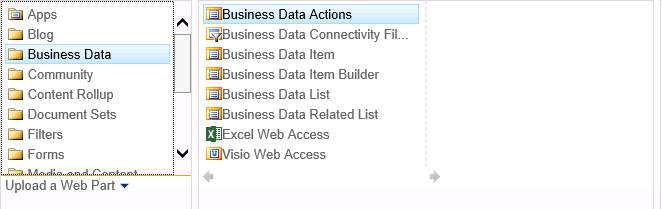
Recently I have encountered with issues where i was unable to find chart control web part under Business Data section in web part gallery.Below are the steps to fix the same.

Steps:
Navigate to top level site or root site.
Go to site settings and then Web Part Gallery.
So chart web part is missing


In order to add chart web part to web part gallery
Repeat steps 1 and 2
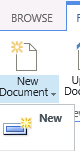
From top ribbon click new and then locate Chart Web part control as shown in screen below.


Select the check box and click populate container.


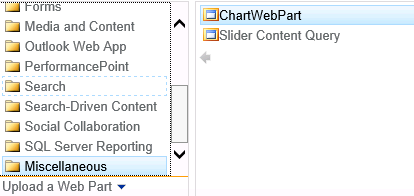
After performing above step 6 and 7 ,chart control web part will be available in Miscellanous section in Web Part gallery


Click Ok

Friday, August 2, 2013

SharePoint 2013 Sig in as different user ?

As you might be aware that in SharePoint 2010 & 2007, there was an option in the user menu where you could login as a different user, for testing or other purpose.
But as soon as we move to Microsoft SharePoint Server 2013, you will notice that the Sign in as Different User menu option is missing.

This was a great tool for developers and IT Pros\admins who wanted to test their solutions or customizations. In the new version of SharePoint I would say we are badly missing this option.

I'm not sure why they have removed it. There can be multiple reasons like

·         Caching Problems
·         Documents opened in external applications are saved with an unexpected user account
·         Page content shows information from the previous user due to cached information
·         Session variables contain information from previous users as the cookies are not cleared...

The below workaround allows users who have more than one AD account for testing to quickly login with a different account to SharePoint - but it does not guarantee that no artifacts from the previous user remain!

To work around this issue, use one of the following methods.

·         Start Windows Internet Explorer by using the Run as different user option, and then go to the SharePoint site
·         Access the SharePoint site by using the following URL: http://<site url>/_layouts/closeConnection.aspx?loginasanotheruser=true
·         You can add some code in the Masterpage for the same
·         Create a sandbox solution for the same

Wednesday, April 17, 2013

SharePoint Shortcut URL


· Add web parts to any page: append ?PageView=Shared&ToolPaneView=2
· Create New Site Content /_layouts/create.aspx
· Create New Site: _layouts/NewsbWeb.aspx
· List Template Gallery: _catalogs/lt/Forms/AllItems.aspx
· Master Page Gallery: _catalogs/masterpage/Forms/AllItems.aspx
· Manage your Alerts _layouts/SubEdit.aspx
· Create New Alert: _layouts/SubChoos.aspx
· Manage Site Collection Administrators /_layouts/mngsiteadmin.aspx
· Manage Sites and Workspaces /_layouts/mngsubwebs.aspx
· Manage People /_layouts/people.aspx
· Manage User Permissions /_layouts/user.aspx
· Modify Navigation /_layouts/AreaNavigationSettings.aspx
· Modify Site Navigation: _layouts/SiteNavigationSettings.aspx
· Recycle Bin /_layouts/AdminRecycleBin.aspx
· Site Directory _layouts/SiteDirectorySettings.aspx
· Save Site as Template: _layouts/savetmpl.aspx
· Site Settings page: _layouts/settings.aspx
· Create New Web Part Page: _layouts/spcf.aspx
· Site Template Gallery : _catalogs/wt/Forms/Common.aspx
· Site Column Gallery /_layouts/mngfield.aspx
· Site Content Types /_layouts/mngctype.aspx
· Site Content and Structure Manager /_layouts/sitemanager.aspx
· Site Usage Summary /_layouts/SpUsageWeb.aspx
· User Alerts /_layouts/sitesubs.aspx
· View All Site Content /_layouts/viewlsts.aspx
· Web Part Gallery: _catalogs/wp/Forms/AllItems.aspx
· Web part maintenance mode: append ?contents=1 to the URL of the page
· Open the page in Edit Mode: In Address bar, Type "javascript:MSOLayout_ToggleLayoutMode();"
or "javascript:MSOTlPn_ShowToolPane(’2′);" in the Address bar
· Add Web Parts Pane: ?ToolPaneView=2

Search Crawl Rule to exclude Item


Below is the list of crawl rules which can be excluded from the Search Results in SharePoint 2010:

http://*allitems.aspx
http://*default.aspx
http://*byeditor.aspx
http://*createdbyme.aspx
http://*recentchanges.aspx
http://*active.aspx
http://*duetoday.aspx
http://*mygrtsks.aspx
http://*myitems.aspx
http://*byowner.aspx
http://*editform.aspx
http://*dispform.aspx
http://*overview.aspx
http://*summary.aspx
http://*calendar.aspx
http://*byauthor.aspx
http://*my-sub.aspx
http://*myblog.aspx
http://*allcomments.aspx
http://*allposts.aspx
http://*myposts.aspx
http://*how%20to%20use%20this%20library.aspx
http://*vwadmin.aspx
http://*singlecirculars.aspx

Distributed cache in SharePoint Farm

During maintainence and operational work there is specific sequence that needs to be followed for Dsitributed cache to disconnect and conne...